
Attachments#
An attachment is a reusable file that isn't a character but that you keep organized inside a project alongside its characters. Two kinds:
- a Daz scene (
.duf) — a base figure, a prop, an outfit, a look you start from - a Houdini template (
.hip) — a ready-made skeleton or material + texture-baker setup that the Utils drawer copies from
It's an opt-in, per-project feature.
Note
Think of it as a labelled shelf plus a one-click "open this in Daz" button, not a character generator — adding an attachment does not create or pre-fill a character.
Enable it#
Attachments are off by default. Open Settings → Project (the Project tab only
shows inside a project window) and turn on Enable attachments, then Save. The
setting is stored in that project's .dcsp file, so you enable it per project that
wants it.

Enable attachments in Settings → Project.
With it off, the project's tab bar is just Characters / Notes / Operations. With it on, an Attachments tab appears beside Characters, and the "Add" panel gains a Character / Attachment choice.
Houdini templates#
Pick Houdini template in the Add panel and choose (or drop) a .hip. Give it
a name and a description — "G9 skeleton, UE5 twist bones" — and it becomes a
one-click source in the Utils drawer: the Source
section lists this project's templates by name, so copying a setup never starts
with hunting for a file.
A Houdini template is always linked, never copied. Moving a Houdini project
safely needs every reference to be relative and its $JOB project folder to
travel with it, and neither can be verified from here — so the copy options
don't appear for a .hip.
Add an attachment#
On the Attachments tab, press Add and fill in:
- Choose Daz scene… — pick the
.duf. The rest of the form appears once a scene is chosen, with a thumbnail preview. - Name — auto-filled from the file name (e.g.
Kira.duf→ "Kira"); editable. - Description (optional) — what this base is for.
- Copy into the
.assetsfolder (on by default) — see below.- Subfolder (optional) — organize copies under
.assets/<subfolder>/. - Delete the original after copying — makes it a move instead of a copy.
- Turn the copy switch off to link in place — the scene stays where it is and the attachment just records its path.
- Subfolder (optional) — organize copies under
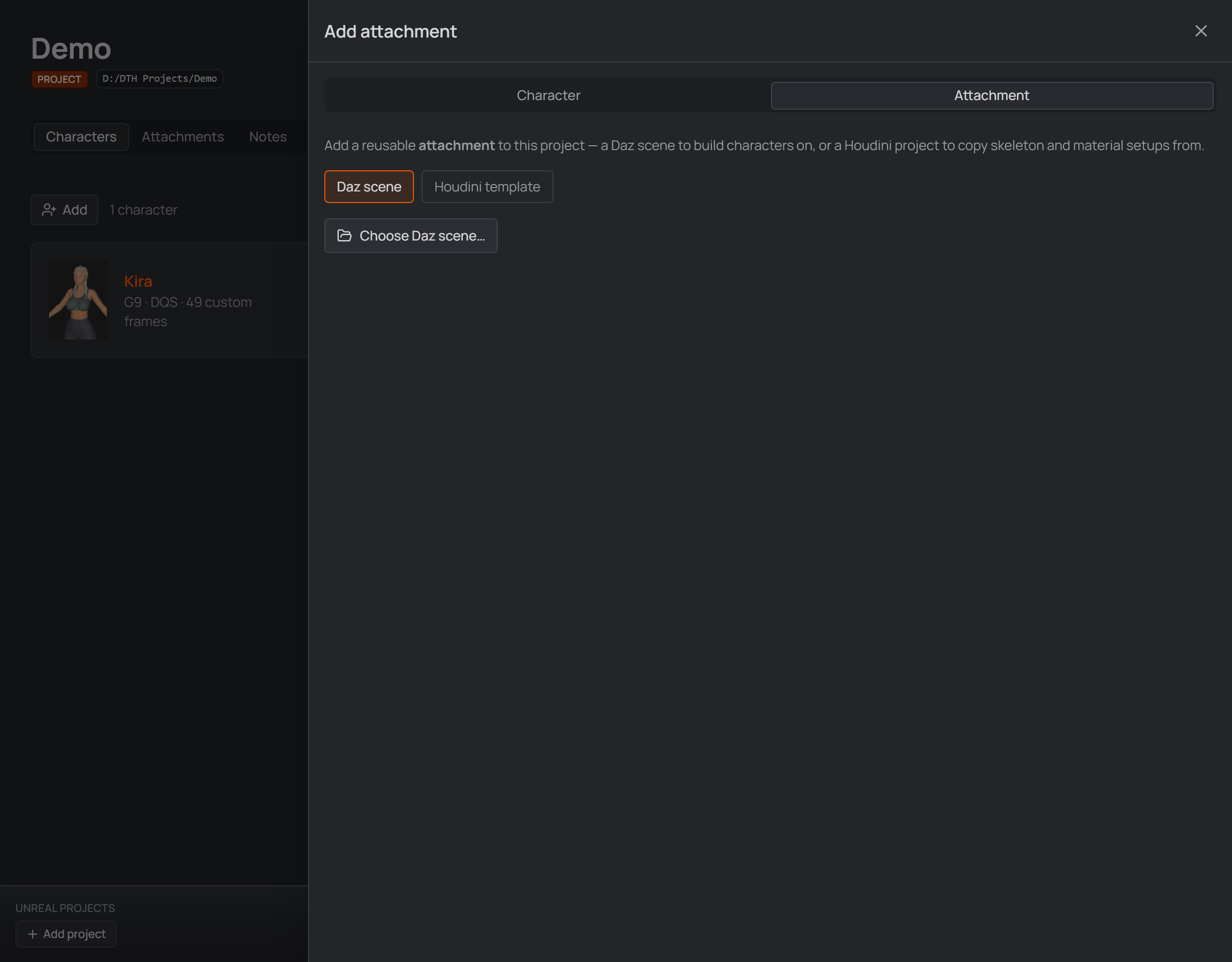
The Add attachment panel with its scene thumbnail preview.
Copy vs link — the one thing to understand:
| Copy (default) | Link | |
|---|---|---|
Where the .duf lives |
duplicated into the project's .assets/ |
stays where it is |
| Portable with the project | ✅ yes | ❌ points at an external file |
| Removing the attachment | deletes the copied .duf (optionally kept) |
never touches your original |
Each attachment card shows its thumbnail (from the scene's .tip.png/.png
sidecar, or the name's initials), its name/description, a storage badge (linked, or
.assets/<subfolder>), and two actions: Open scene in Daz and Remove
attachment.
Use an attachment#
The only in-app action is Open scene in Daz — it opens the .duf in Daz
Studio (Daz must be the registered handler). From there you work in Daz as
usual: dial your character on top of the base, save a new .duf, and back in
the studio Add character pointing at that saved scene.
On disk#
Everything lives in a hidden .assets/ folder inside the project:
.assets/assets.json— the registry (names, descriptions, scene paths, copy/link flags).- copied scenes (and their thumbnails) under
.assets/(or.assets/<subfolder>/).
There is no global/shared attachment library — attachments belong to one project
only. Changing the project's characters subfolder never touches .assets.
Good to know#
.dufscenes only.- The adjacent Show the Daz Products tab switch is a separate feature — see Daz product scanning.