
The Utils drawer#
Every Houdini project card on the character page carries a Utils button (the 🔧 that appears on hover). It opens a drawer with a tab per job.
The drawer works on that one project. Utils are per project — that is why the
button lives on the card rather than on the section — so everything inside is
about the .hip you pressed it on: its checks, its repairs, its nodes. To work
on another project, open its own card's Utils. (The one exception is the
source of a copy, which is by definition another project.)
- General — the health check of the project itself, and the repairs for what it finds. The tab it opens on, and the only one useful without a source project picked.
- Export check — this project's material setup held against the DTH Export it imports: which claims still bind to a surface that exists, and what a setup built from that export alone would look like. Read-only.
- Material, Skeleton, Occlusion and Groom occlusion — copy a node's complete setup from one project into another. One tab per DazToHue node kind, because a setup belongs to its node: the material tab carries material slots, UV channels and texture bakers, the other three carry their node's own option folders.
For what the studio hands Houdini in the first place — the CSV, the exports and the generated project — see Into Houdini.
Copy a texture-baker setup between projects#
Setting up a DazToHueMaterial node is the most tedious part of the whole
workflow: one skin material easily runs to four bakers of thirty layers, each
layer naming a texture, a geometry group, a blend mode and seven adjustments —
on top of the material slots that merge fifteen Daz surfaces into one Skin.
If you reuse the same skin across characters, you were rebuilding all of it by
hand.
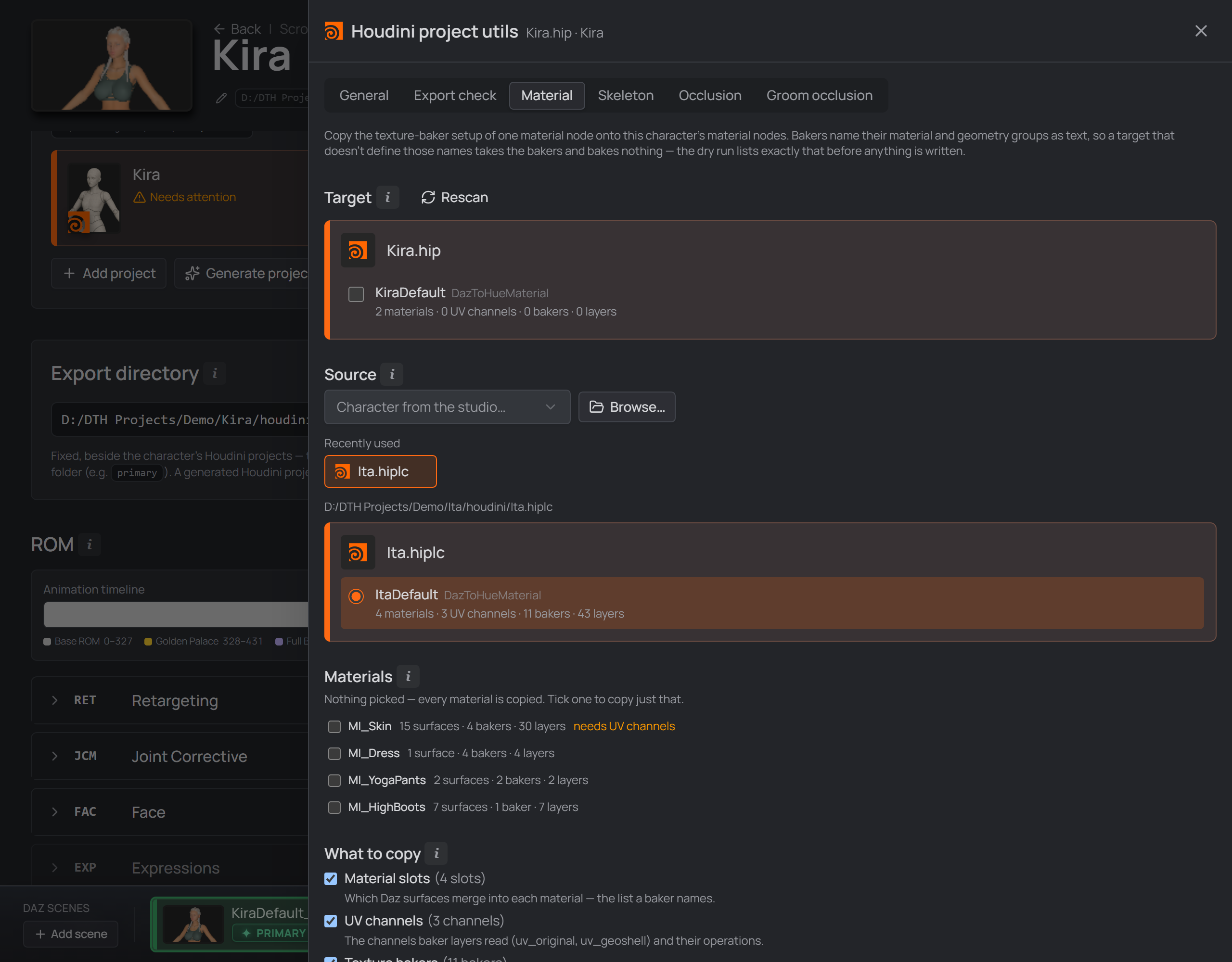
The Utils drawer: this project's nodes as targets, a browsed project as the source, and what travels.
Target — the DazToHue material nodes in this project, the one whose card you opened Utils from. Tick the ones that should receive the copy; nothing is ticked for you, because this writes to the project. To copy into a different project, open that card's Utils.
Network boxes are picked up if you use them. Once a project holds more than one DTH network, the usual way to keep them apart is to wrap each in a network box and give it a title — and then the nodes inside are all called
DazToHueMaterial,DazToHueMaterial1,DazToHueMaterial2, which says nothing about which network you're picking. The scan reads the box title and lists those asKiraDefault,KiraYoga,KiraNaked, keeping the node name beside it. Boxes are entirely optional: with one network — or an untitled box — the list simply shows the node name, exactly as before.Source — the node to copy from: pick another character from the studio, or Browse… for any Houdini project on disk (dragging a
.hipout of Explorer onto that button does the same). A project that keeps Houdini templates lists them here by name as one-click sources. The last five sources you picked are offered as Recently used chips under the picker, so the template you keep coming back to is one click rather than another trip through the file dialog — re-picking one floats it back to the top, and a file that has since moved or been deleted drops out of the row rather than offering a chip that can't open. Exactly one node can be the source.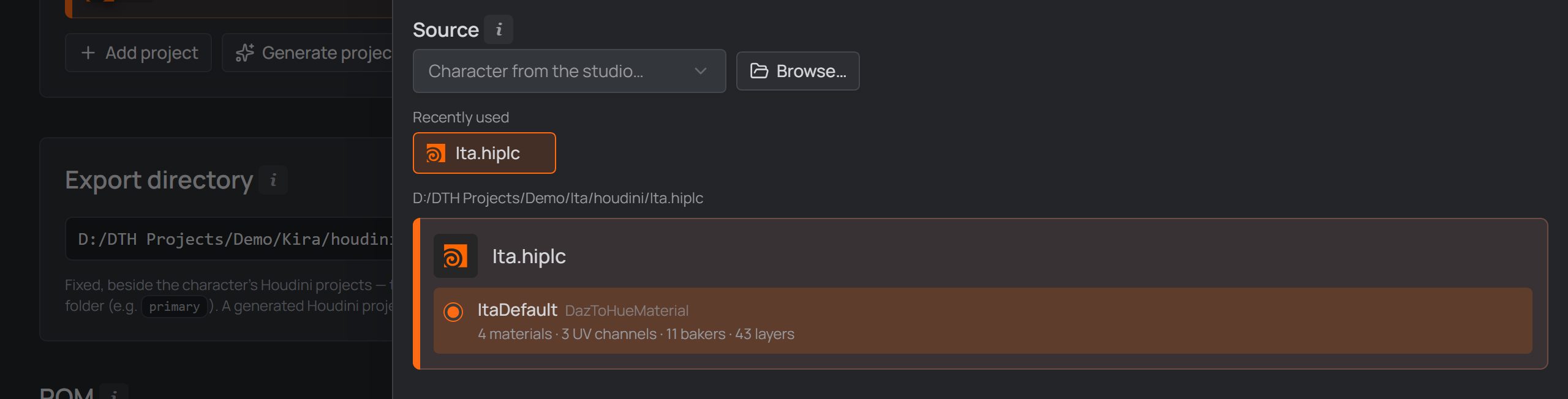
The source you just picked comes back as a chip under the picker — the second use is one click.Transfer asks for confirmation, then offers Dry run (changes nothing, reports exactly what a real run would do) and Run.
Replace UV channels and bakers is off by default: the copied ones are added to whatever the target already has. Turned on, the target's existing UV channels and bakers are removed first. It does not cover material slots — those always merge by surface.
Pick a material, not a node#
The thing you actually reuse is a material. The drawer lists the source node's material slots with what each one costs by hand:

Each slot with what it costs by hand — and which one needs the UV channels.
Tick one and only that material travels — its slot definition and the bakers that name it. Tick nothing and everything is copied.
This matters because the two halves behave differently. A skin slot merges the same ~15 Daz surfaces on every character of a generation, so it transfers between any two Genesis 9 characters as-is. Clothing slots only match when the target wears the same asset.
What gets copied#
What to copy picks which parts travel, all on by default:
| what it is | |
|---|---|
| Material slots | which Daz surfaces merge into each material — the merge list is the tedious part |
| UV channels | the node's UV channels and their operations (all of them — channels are positional, not named) |
| Texture bakers | the bakers of the picked materials, and every layer |
Bakers reference everything by name. A baker copied into a node that has no material called
MI_Skinimports fine and then bakes nothing. Untick Material slots and the report names exactly which materials are then missing, so you know what to set up by hand first — unticking UV channels is refused outright when it would strand a baker (below).
Do you need the UV channels? The drawer tells you: a material shows
needs UV channels when its bakers read a UV that only a channel produces.
Measured on a real setup — a skin reads uv_geoshell (built by the
Copy-From-Geoshell channels), while clothing reads only uv_original, which
every DTH import already has. So a skin copy wants the channels and a clothing
copy doesn't, and you don't have to remember which.
It isn't only advice. Untick UV channels while such a material is selected and Transfer is disabled, with the reason stated beside the checkbox that caused it: those bakers would land pointing at a UV name nothing at the target creates. Tick the channels, or deselect that material — either clears it. The block applies only while Texture bakers travel; without them there is no UV dependency to satisfy.
This also blocks a target that already has matching channels. UV channels
carry no name — they are positional — so the studio cannot verify that a
target's channels produce uv_geoshell, and it refuses rather than let a copy
through on an assumption it can't check.
A parameter linked to another node arrives as its value. The DazToHue HDA's
own Linking rewrites a node's parameters into references at its source
(ch("…/DazToHueMaterial/…")) so it live-mirrors another node inside the same
network. A reference like that cannot cross into another file: DTH node names
are identical in every project, so the copy would silently rebind to the
target project's own node and read wrong values without erroring. Such a
parameter is copied as the value it had in the source — which is what you meant
to reuse. Expressions naming no node travel as written.
Material slots merge by surface#
A material slot is a claim on Daz surfaces, and a surface can belong to only one slot. So installing a slot removes exactly the slots that claim the same surfaces — no more, no less.
Copying a Skin that merges Body Head Legs … onto a freshly imported
character (which holds each of those as its own slot) leaves you with Skin
plus the clothing and eye slots it never touched. Neither of the obvious
alternatives is right: replacing the list wholesale would throw away the
clothing, and appending would leave the target's Body beside the incoming
Skin that already claims it — the same surface claimed twice.
A target slot claiming a mix of taken and untaken surfaces is not dropped; it keeps the ones nothing else claims.
The confirm dialog lists what this replaces at each target before you run, and the report names it again afterwards.
Same figure only — checked, not assumed#
A material setup only transfers within one Genesis version. The studio checks that without knowing anything about generations: the surfaces your selected materials claim are matched against the ones the target actually has.
- Some unclaimed is normal — the source wears a dress this character doesn't. You get a note, and the transfer runs.
- None matching means the two nodes describe different figures, and Transfer is disabled, with the target named. The copied slots would name surfaces that aren't there and every baker would bake nothing. Deselect that target, or pick a source built from the same figure.
Because the match list comes from the source itself, this is right for every generation — including ones the studio has never been told about, and third-party figures.
A target with no material slots yet — a freshly generated DazToHue network — is never flagged and never blocked. There is nothing there to contradict, and setting an empty node up from a template is the normal reason to run a transfer in the first place.
Portable texture paths#
Texture layers store absolute paths into your Daz library
(D:\DAZ 3D\My DAZ 3D Library\Runtime\Textures\…), so a copied setup breaks the
day that library moves — or the day the project opens on a machine where it sits
on another drive.
Portable texture paths (on by default) rewrites those to
$DAZ3D_LIB/Runtime/Textures/…, the variable the studio already wires into
every configured houdini.env. Houdini expands it at load, so the setup keeps
working wherever the library lives. Turn it off to copy the paths exactly as the
source stored them.
Only paths under your Daz library are rewritten. A texture living somewhere else can't be made portable, so it stays absolute and the report lists it — the copy is only as movable as those paths.
The transfer saves the target project once — the source is only read. Close that project in Houdini first — Houdini writes the entire scene when you save, so an open copy would overwrite the transfer.
Every run that writes takes a backup first, and you never have to think about it: one rolling
backup/<name>_dthbak.hiplcbeside Houdini's own, silently replaced each run. It only ever surfaces when something fails — the failed entry in the report grows an Undo this run button that puts that project back exactly as it was. A run that worked has nothing to undo, so it says nothing.They last as long as the drawer. A backup is an undo buffer for this sitting, not an archive — each is a full copy of the project, so leaving them to pile up beside every project you ever touched is how a disk fills. When you close the drawer it lists what it made and asks: Remove clears them, Keep them doesn't. If a run failed and you haven't undone it, the prompt says so — that copy is the only way back. Only the studio's own
_dthbakfiles are ever removed; Houdini's backups in the same folder are never touched, and a file Houdini is holding open stays put.
The Skeleton tab#
The same transfer for the DazToHueSkeleton node, which carries just as much hand-work — a real setup here holds 22 bone renames, 10 reparents, 3 deletes, the breast/glute physics-bone offsets and the skin-weight operations. Daz bone names are fixed per generation, so that whole block moves between characters of that generation.
Sections are the node's own three tabs — General, Skeleton and Skin Weights — and each one is copied wholesale: a configuration block isn't a list you append to (22 renames onto 22 existing ones would be 44 rules, not a merged setup), so this tab has no Replace at target toggle. The counts beside each section are how much is actually set there, not how many parameters exist.
It carries the same Recently used row as the Material tab, and the same list
behind it: sources are remembered per machine, not per tab and not per project,
because the template you copy from usually lives outside any project. The row
remembers every source you pick, including the one-off look, so each chip has
a ✕ to drop it again — that removes the shortcut only, never the .hip.
The Occlusion tabs#
Same transfer again, for the two occlusion nodes — and they are two, so they get a tab each rather than one tab that changes shape under you:
- Occlusion — the DazToHueOcclusion node. Its sections are Occlusion Culling (the substance: the manual occlusion attributes and the Auto-Occlusion operation list) and Visualise (what the node draws in the viewport while you work).
- Groom occlusion — the DazToHueGroomOcclusion node, with its own Options, Skin, Occlusion Mask, Texture Stamp and Visualise.
Like the Skeleton tab, each section is a folder copied wholesale — its settings and any lists inside it replace the target's — so there is no Replace at target toggle, and the count beside a section is how much is actually set there. Tick only the sections you want; unlike a material setup, these do not depend on each other.
The node's own
Linkingfolder is deliberately not offered. It holds parameter references, and DTH node names are identical in every project — a copied reference would quietly rebind to the target project's own node and read the wrong values without erroring. It is the same rule the material transfer follows, where a linked parameter travels as its value.
The General tab#
The tab the drawer opens on, and the only one useful without a source project picked: what this project carries now, and what the studio can put right. Every check is one row — its name on the left, the verdict on the right, the value beneath — and the fixes sit in the footer, in the order they have to be run. (Refresh assets leads them but answers to no check; see below.)
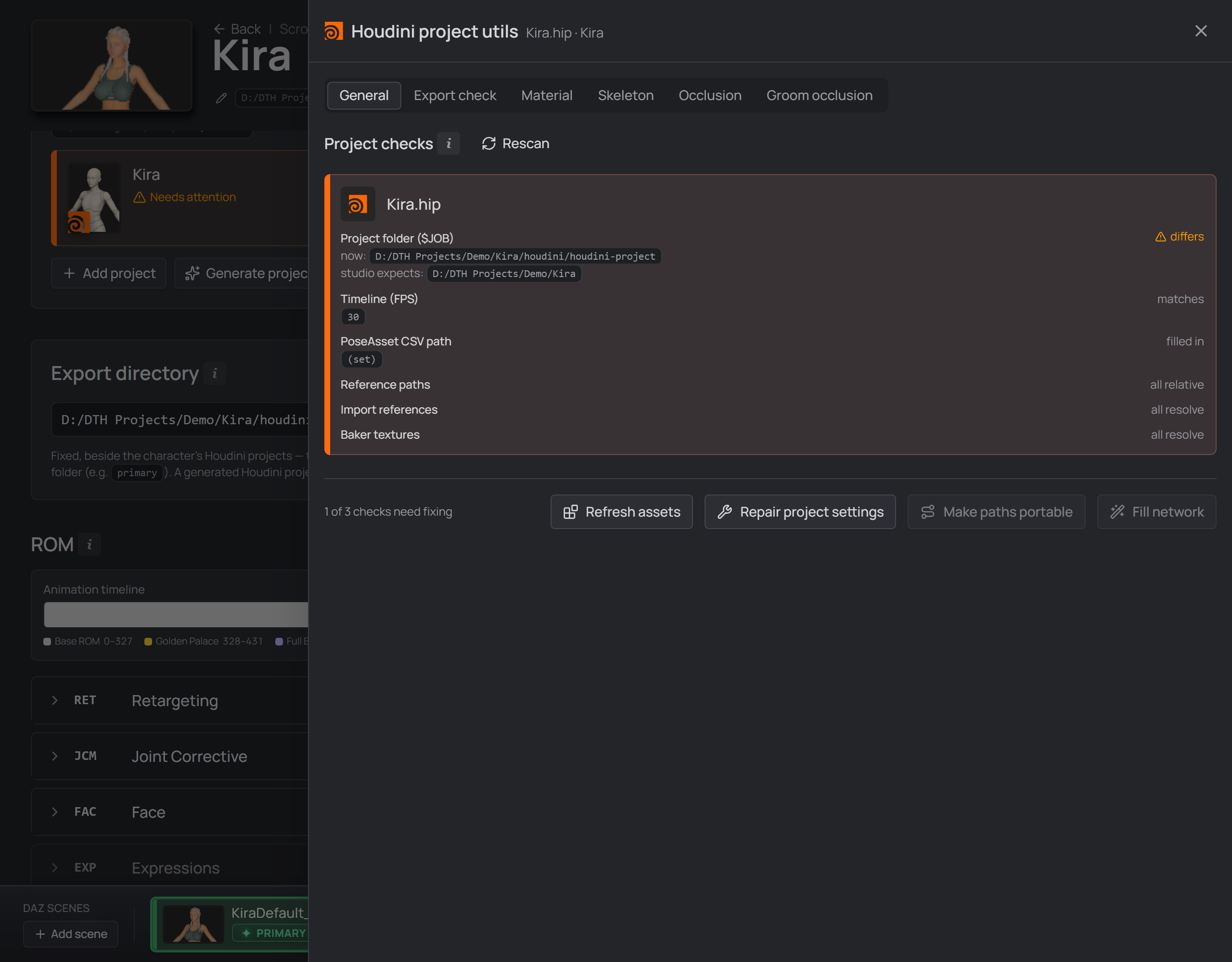
A project made before v0.64: $JOB still points below the exports, everything else passes.
Project folder ($JOB) is the one you can repair. $JOB is saved inside
each .hip, so a project keeps whatever it was created with — and projects made
before v0.64 point it at the shared houdini/houdini-project folder rather than
at the character folder.
Since the exports moved inside houdini/ (v0.68), most import paths no longer
depend on $JOB at all: they sit under $HIP, the .hip's own folder,
which Houdini derives from where the file is and so can never get wrong. What
still runs through $JOB is what $HIP cannot reach without climbing out —
chiefly the character's export/ folder, Houdini's own Unreal-bound output,
which sits beside the houdini folder rather than under it and is written
$JOB/export/. A project carrying another character's $JOB aims its finals at
that character's tree.
Measured with the call Houdini's own file picker uses — on the pre-v0.68 layout,
when the exports still sat outside the houdini folder and $JOB was the only
variable that reached them:
$JOB |
picking an export gave you |
|---|---|
<character>/houdini/houdini-project |
D:\…\Ita\houdini\daz-export\primary\Ita.fbx |
<character> — what Repair project settings writes |
$JOB/houdini/daz-export/primary/Ita.fbx |
It fixes what you pick from now on. Repointing
$JOBdoes not rewrite references that are already stored absolute — that is what Make paths portable below is for.
Timeline (FPS) is the second value the same button repairs, and it is scene state in exactly the same way. The ROM is one pose per frame at 30 fps — that is the rate Daz writes it at and the rate the PoseAsset CSV's frame numbers mean — while Houdini's own default is 24. DazToHue's import node sets the scene's FPS for you when it loads the files, so this row is about the projects where that hasn't happened: one the studio generated headlessly (nothing loads a file there, so generation sets it up front) and one you built by hand before importing anything.
What it does to existing animation is Houdini's business. The repair calls Houdini's own
setFps; how that treats keys already in a scene is Houdini behaviour this studio has not measured. As with every other run here, the project is backed up first and a failed one can be put straight back from the report.
PoseAsset CSV path is a read-out rather than a repair of its own — filled in, not filled in (Fill network writes it), or your DazToHue has no such parameter, the release story spelled out under Fill network below. Three different answers, and only the middle one is work you can do.
Reference paths and Import references are the other half. Repairing
$JOB decides how future picks are written down; these two fix what is
already written.
Baker textures is the one row with nothing to press. It lists the material baker layer textures whose file is no longer on disk — usually a Daz product that was uninstalled or a library that moved. The studio can only tell you; putting the file back is a reinstall.
Why it's worth a row at all. This is the one failure in the pipeline that reports itself as success. Baking with a missing texture prints
DazToHue: export finishedin the Houdini console and raises nothing — no error, no warning. Without this row the first sign is a wrong-looking character in Unreal, long after the bake.
Make paths portable does two things in one pass:
- Rewrites every absolute reference that sits under
$HIP,$JOBor$DAZ3D_LIBso it is stored relative to that variable instead. On a real project that was 131 texture paths, all of them into the Daz library. Anything under none of those roots can't be made portable — it stays exactly as it is and the report names it. It also shortens a project still carrying the longer$JOB/houdini/daz-export/…form to today's$HIP/daz-export/…, and only on DazToHue nodes — a$JOBpath on your own cache or render nodes is your choice of anchor and is left alone. - Re-homes the pre-v0.69
$HIP/../…paths the card warns about. Projects made before v0.69 reach the character folder by climbing out of the houdini folder —$HIP/../daz3d/Kira.duf— which resolves today but encodes the scene's depth, so the day that.hipsits one folder deeper every one of them points somewhere else. They are rewritten to$JOB/daz3d/Kira.duf, which names the character folder outright. Only$HIPpaths that actually leave the folder are touched: one that stays inside is where Houdini itself puts renders and caches, and is not a leftover. - Rebuilds a DazToHue import path that points at a file which isn't there.
Two cases, one pass. Projects made before v0.63 address their
.dththrough the retireddth-exportsjunction, so it dangles while the.fbxand.abcbeside it are fine — the replacement is derived from that same node's other export files, which sit together under the same name. Projects made before the export folder moved point at the old one, and there every import broke at once, so no sibling survives to follow: those are rebuilt from the character's current export directory instead. Either way the new path is only written when the file it would point at actually exists. Nothing is guessed.
$JOBhas to be right first, and the button stays disabled until it is. A path is made relative to whatever$JOBthe scene currently carries, so repathing a project that still has the old value would store every export path against the wrong folder. Measured on one real project: with the stale$JOBit reports 0 paths it can fix; after the$JOBrepair, the same file reports 2.
Both offer a Dry run, and both take the same silent backup described above — so a failed run can be undone from its own report. Running twice changes nothing the second time.
Fill network gives an existing project the same wiring Generate project gives a new one: the import file paths, the export directory and — once your DazToHue has it — the PoseAsset CSV path. Projects you already have can never be regenerated, so this is how they catch up.
Two things make it safe to run on a project you set up by hand:
- Only blank parameters are written. Anything you filled in yourself is listed as already set, left alone and never touched.
- A parameter your DazToHue version doesn't have is named, not silently skipped. DazToHue 2.5 has no PoseAsset CSV path — the node ships an import button instead — so the row says so rather than failing quietly. 2.5.1 added it (Auto CSV File Path), and there Fill network writes it like any other blank parameter. Nothing to re-install and nothing to re-generate: install the newer DazToHue and the same action simply starts filling it.
Once the paths are in, Fill network runs the import node's own "a character was chosen" routine — so the project comes back with the character loaded, on the rest pose, instead of holding correct paths whose load never happened (the same step Generate project takes). It is skipped when the export files aren't on disk yet: there is nothing to load.
Repair project settings is enabled only when the project actually differs —
one already on the right folder and the right timeline leaves the button dead,
so running it twice rewrites nothing the second time. The two values are judged
separately: a project whose $JOB is fine and whose timeline is 24 gets its
timeline written and nothing else, and the report says which of them moved. It
offers the same Dry run as the transfer, and the same backup before saving.
A value the scan couldn't read is never repaired: it is unknown, not wrong.
Refresh assets is the odd one out, and deliberately so. A .hip stores the
DazToHue asset definitions it was built with, so switching your installed
DazToHue release leaves every project you already have on the old ones —
DazToHue's own answer to that is the Refresh Assets tool on its shelf. This
button runs that tool on this project, without you opening it in Houdini.
Three things it does not do, because it can't:
- It isn't a check. Nothing in a project says which DazToHue release its assets came from, so nothing can tell you a project needs this. It is always on offer and never counted among the three checks above — you run it when you know you changed DazToHue.
- It can't preview. The studio runs DazToHue's tool rather than doing the refresh itself, so it has no idea in advance what will change. The Dry run still opens the project and runs the tool — it simply never saves the file. That is a weaker promise than the other dry runs' nothing was written, and the dialog says so.
- It won't tell you it worked. The report names the shelf tool that ran and whether the scene came back modified — nothing more, because nothing more was observed. A project that reports no change is left alone rather than re-saved.
If the tool isn't found, the report names the DazToHue shelf tools that were there. hython reads the shelves from the Houdini documents folder in Settings, so that list is usually the fastest way to see that DazToHue isn't installed for the Houdini version the studio is pointed at.
The Export check tab#
Every DTH Export writes a Materials list into the .dth the HDA imports —
one entry per Daz surface, carrying the asset that owns it, the Daz content type
and every channel with its texture path. This tab reads that list and holds it
against what this project's material nodes actually claim.
Nothing here is written. No hython runs, no .hip is opened: both inputs are
already on disk — the stored scan and the export the project imports — so the tab
costs nothing to open and cannot damage a project.
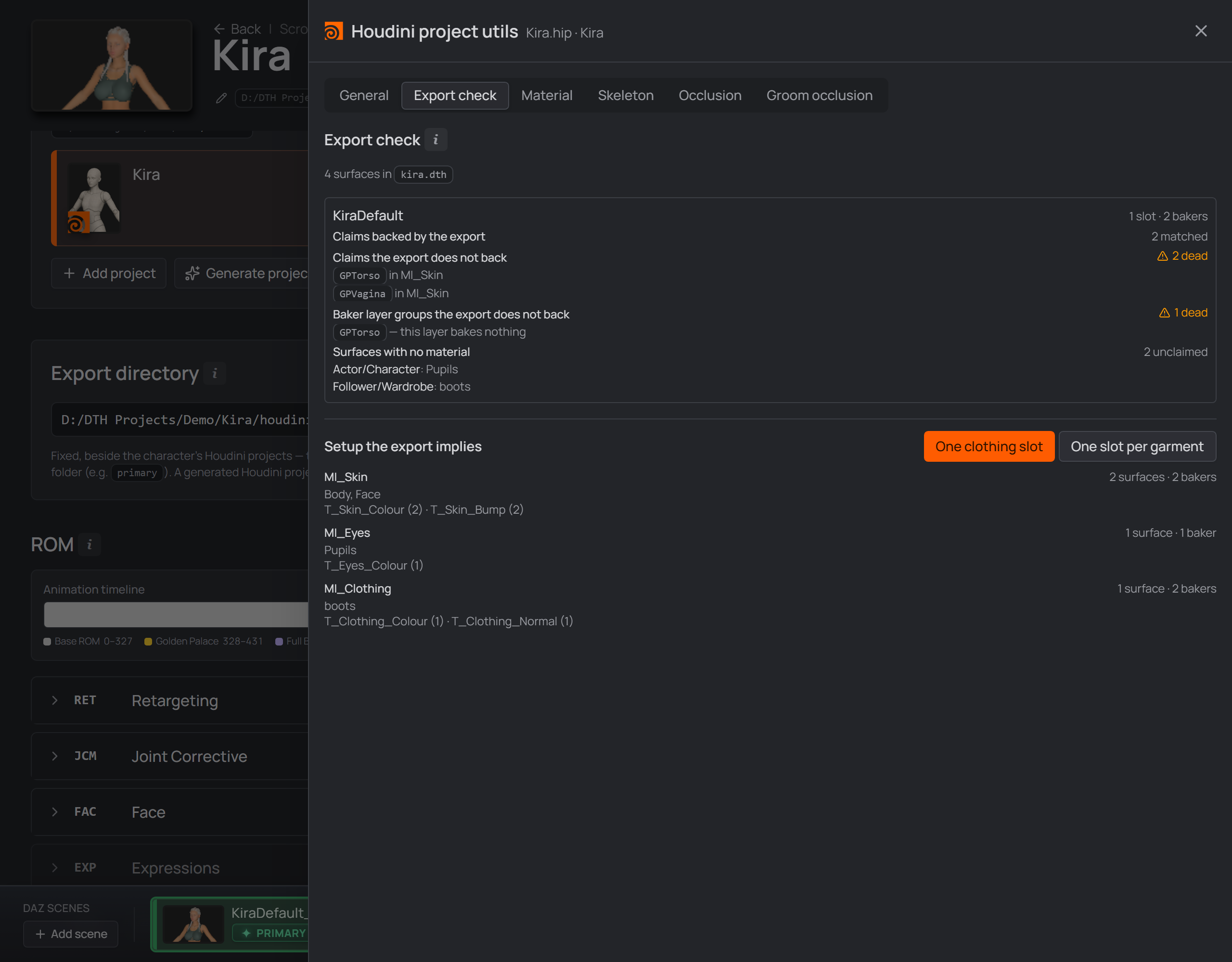
Each material node against the export it imports — and, below, the setup that export alone implies.
Does this setup still match the scene?#
A DazToHue material slot claims Daz surfaces by plain text
(@fbx_material_name=Body), and so does every texture baker layer. Nothing
re-binds those claims when the scene changes: swap a graft out, drop an outfit,
and they go on naming surfaces the scene no longer exports. Measured on DazToHue
2.5, a baker layer in that state finishes normally and bakes nothing —
neither Houdini nor the HDA reports it.
Each material node gets four rows:
| Row | What it means |
|---|---|
| Claims backed by the export | slot claims naming a surface the export contains — the ones that work |
| Claims the export does not back | dead: the slot names a surface this scene no longer has, so it merges nothing. Each is listed as the surface and the slot holding it |
| Baker layer groups the export does not back | dead: the layer's geometry group names a surface that is gone, so that layer bakes nothing — the silent failure above |
| Surfaces with no material | surfaces the export contains that no slot claims, grouped by Daz content type |
The last row is never flagged, deliberately. Whether an unclaimed surface is
a defect depends on what the node is for — a "naked" variant node is supposed
to leave its wardrobe unclaimed — so they are grouped by content type
(Actor/Character, Follower/Wardrobe) and left for you to read, rather than
badged as a problem the studio cannot actually judge.
A layer group in a vocabulary this can't judge — the geoshell group field rides the same list, and its vocabulary has never been measured here — is reported as not judged rather than counted as dead or alive.
What a setup built from this export would look like#
Setup the export implies is the second half: the slots, the surfaces each would claim, and the bakers the textures imply.
The grouping needs no heuristic, because the Daz content type is
vendor-authored — the figure and its wardrobe are already labelled in the export.
Bakers are named the way real projects already name them —
T_<Slot>_<Channel>, so T_Skin_Colour, T_Clothing_Normal — one per channel
that actually carries a texture.
Wardrobe is the one genuine choice, so it is a toggle — both shapes exist in real setups:
- One clothing slot — the whole outfit merges into one material.
- One slot per garment — each garment gets its own.
Two things a proposed slot can say in amber: unmapped channels (a texture whose Daz channel has no baker equivalent here — shown rather than dropped, because "there is a texture we don't know where to put" is worth knowing), and a slot that mixes shaders, which will not bake as one material.
A proposal read from textures is partial by construction. A baker built from a constant rather than a map leaves no texture path in the export, so it cannot be recovered from one. What you get is the part the export accounts for, not the whole setup.
Generating that proposal into a node is a separate step and is not part of this release: the tab shows you the shape, you build it.
When it can't answer#
A missing input is said plainly rather than shown as a clean result:
- not scanned yet — the project hasn't been read; Rescan on the General tab does it.
- no export at … — run a DTH Export for that scene once and the setup can be read from it.
- carries no material list — the export predates the DTH version that writes one.
- this project imports n scenes — the scan records imports per project rather than per network, so the studio cannot tell which material node belongs to which scene. It refuses rather than guess.
Scanning#
Like Generate project,
this runs Houdini's hython, so it needs the Houdini installation folder
and its matching documents folder in Settings. The drawer scans the one project
it was opened on — when it opens and again after a run — and only when something
that project depends on changed, so coming back to one nobody touched costs
nothing. Reading a .hip the first time takes a few seconds; a transfer
rewrites it, so it is read once more afterwards. One scan serves every tab — the
$JOB and $HIP values are read in the same pass as the nodes — so switching
between them is instant. (Export check adds one thing on top: it reads the
export itself, and only while you are on that tab.)
Installing a new DazToHue invalidates it. What the scan remembers depends on
the DazToHue libraries hython loads, not only on the .hip — so installing,
updating or removing an .hda in the paired preferences folder re-reads every
project that depended on it. Without that, a verdict phrased in the old
release's vocabulary outlives the install that replaced it: a freshly installed
DazToHue would keep being reported as the one it replaced.
So does a studio update that asks the scan a new question. A stored answer only holds what the version that wrote it thought to record, so when an update starts reading something new out of a project — the baker layer groups the Export check needs, say — every stored answer is retired and re-earned. The first look at a project after such an update is therefore a real read rather than a cache hit, and a row that is briefly empty there is the rescan, not a finding.
Rescan re-reads the project. The button bypasses the cache and opens the
.hip with hython again, then says so — so a verdict you believe is wrong has
a way out. (It used to be served by that same cache, which on a project that
looked fresh made it indistinguishable from a dead button.)