
Daz product scanning#
Product scanning answers "which Daz products does this character actually use?" — the studio analyses each scene as it exports it, matches the used assets to your installed products, and files the result (product name, SKU, artist, version) against the character. Useful for provenance, licensing notes, or rebuilding a character later.
Note
It runs on its own and it never affects ROM generation. Nothing to start, and nothing to confirm afterwards.
Set the DIM manifests folder — that's the switch#
Usually already done. Activating a Daz installation in Settings → General fills this from DIM's own settings, and it then shows read-only there.
Otherwise set the DAZ Install Manager manifests folder in Settings — the
ManifestFiles folder DIM writes (a folder of .dsx files; see DIM → Advanced
Settings → "Download/Install"). Detect installed location auto-finds it.
That folder is the product database, so it is also what arms the scanning: with it set, every export run scans the scene it just built and files the result. With it empty, nothing is scanned — there would be nothing to match against.
- It's a machine-wide setting (shared by all projects).
- Scanning happens whether or not you look at it (see the tab toggle below).

The DIM manifests folder field with its Detect button.
Show the Products tab (per project)#
Settings → Project → Show the Daz Products tab decides whether this project's characters get a Products tab. That is all it decides — the scanning and the filing happen either way, so turning the tab on later shows you results that were already collected.

The tab toggle in Settings → Project.
When a scan happens#
- Every ROM/export run scans the scene it just built.
- Tools → Scan & index → Scan project covers every scene of every character in one unattended batch.
- By hand, for a one-off scene: open the scene in Daz Studio and run
Scan_Products_<Name>from the Content Library (installed beside the ROM script underScripts/DTH-Character-Studio/<Project>/<Character>/). The studio picks that up next time you open the character — or press Check for new results on the Products tab.
Note
Per-scene by design. Each scene is filed separately and a re-scan replaces only that scene's entry, so scanning one outfit never disturbs the products you mapped for the others. The tab shows them merged, attributing each product to the scene(s) it appeared in.
Matching tries the strongest signals first — the asset's own file, its textures, SKU, product keywords — falling back to a content-library match for manual installs without a DIM manifest (that's the Match column on the Products tab).
Results are stored with the studio's other per-character files, in the project's
hidden .dcsmeta/characters/<Character>/products.json. They travel with the
project and go when you delete the character. The Daz-written CSVs are transport
only: they're parsed and deleted the moment the studio picks them up.
Read the results (Products tab)#
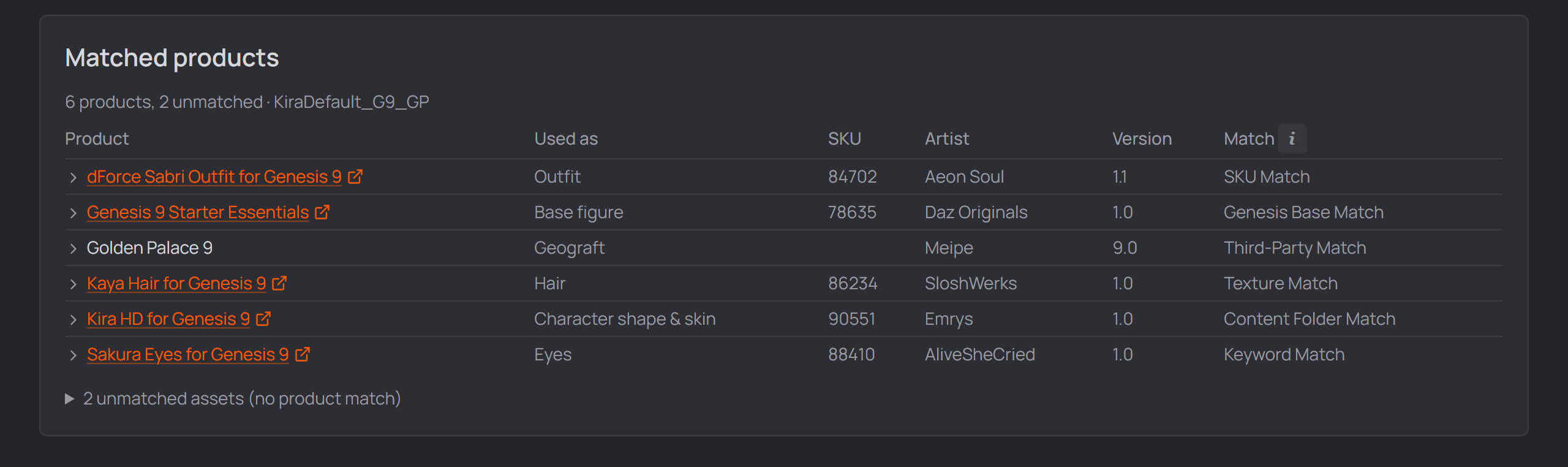
The matched products table on the character's Products tab.
- Scanned scenes — one row per scene, with its counts and when it was last scanned. The panel below is these merged.
- Matched products — a table of Product · Used as · SKU · Artist · Version · Match (with a per-scene filter when a character has several scanned scenes). Expand a row to see the exact assets behind the match. When the SKU is a Daz store id, the product name links to its Daz product page.
- Unmatched — a collapsible list of assets the scan couldn't tie to a product (still shown with artist/version from their own files). Common for hand-installed content.
- Check for new results — re-reads, picking up anything a manual Daz run left behind.
- Clear — throws the stored results away. The next export run rebuilds them.
Gotchas#
- No DIM folder → no scanning at all. That folder is the product database; without it there is nothing to match against.
- A product installed outside DIM matches by its content-library folder instead, so it has no SKU — the name and artist come from the content's own files.