
The Tools page#
The Tools page (top-right) is where you keep the studio's morph index fresh, install and maintain your own Daz / Houdini content, and keep the studio's generated files in sync. Everything here is optional — you never need it to define a character and generate its ROM. The one-time setup covered installing the DTH release + Exporter; Tools is for the extras beyond that.
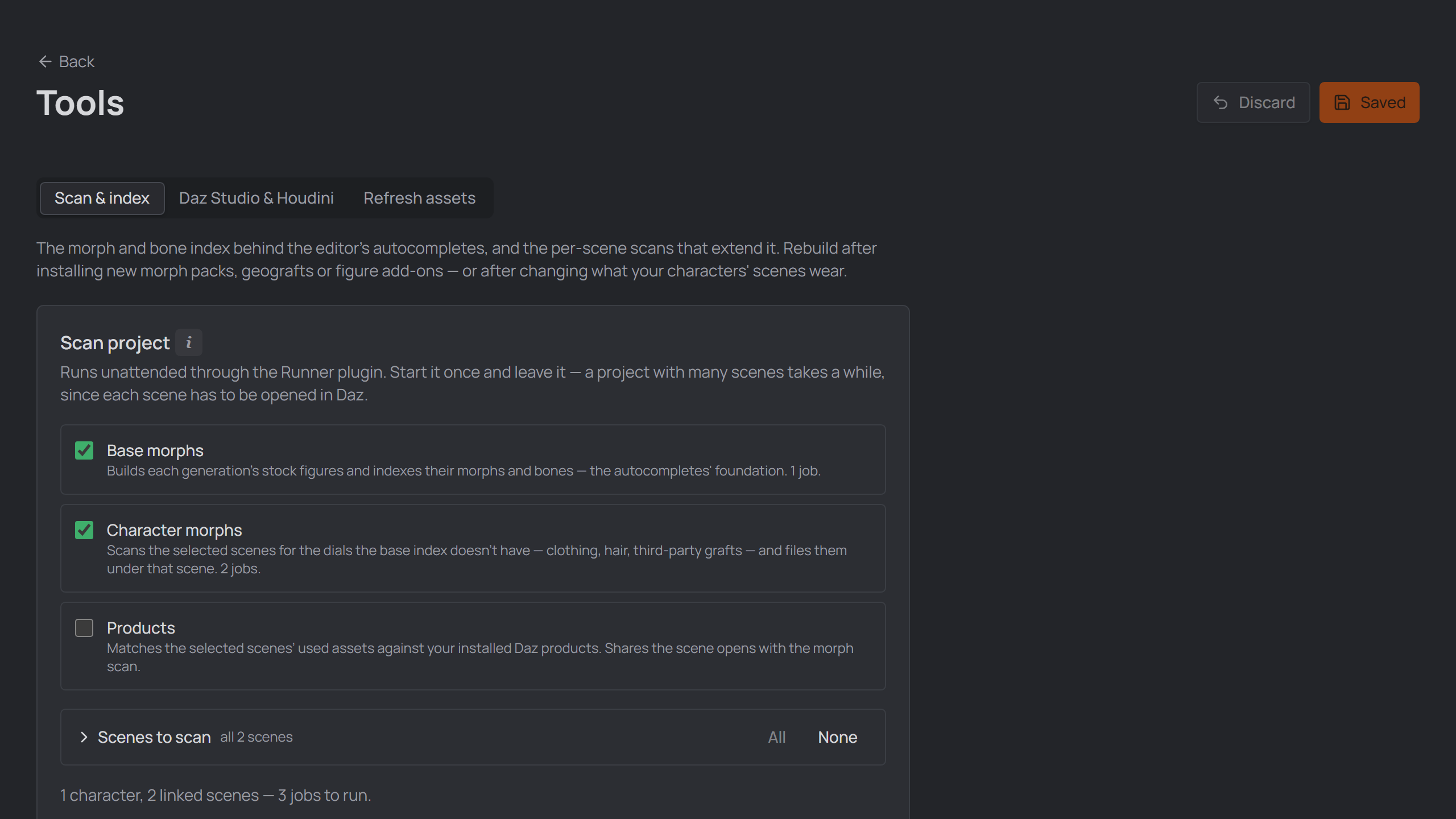
The Tools page and its tabs.
Note
Everything the Daz side needs ships with the studio — the runtime and the
visible scripts (Build_Genesis_Index, Scan_Frames,
Fix_Graft_Shell_Surfaces,
Kill_Animation)
install into Scripts/DTH-Character-Studio automatically on Save / Refresh
assets. There is no separate scripts download anymore.
Tab 1 — Scan & index#
The morph and bone index behind the editor's autocompletes, and the per-scene scans that extend it.
Scan project#
One pass over everything a project can be scanned for. Tick what you want, press Start scan, and leave it — the studio hands Daz Studio a single batch and works through it unattended, reporting progress on the button. The batch goes through the Runner plugin, so Start stays off until the Runner is installed and My DAZ 3D Library is set in Settings.
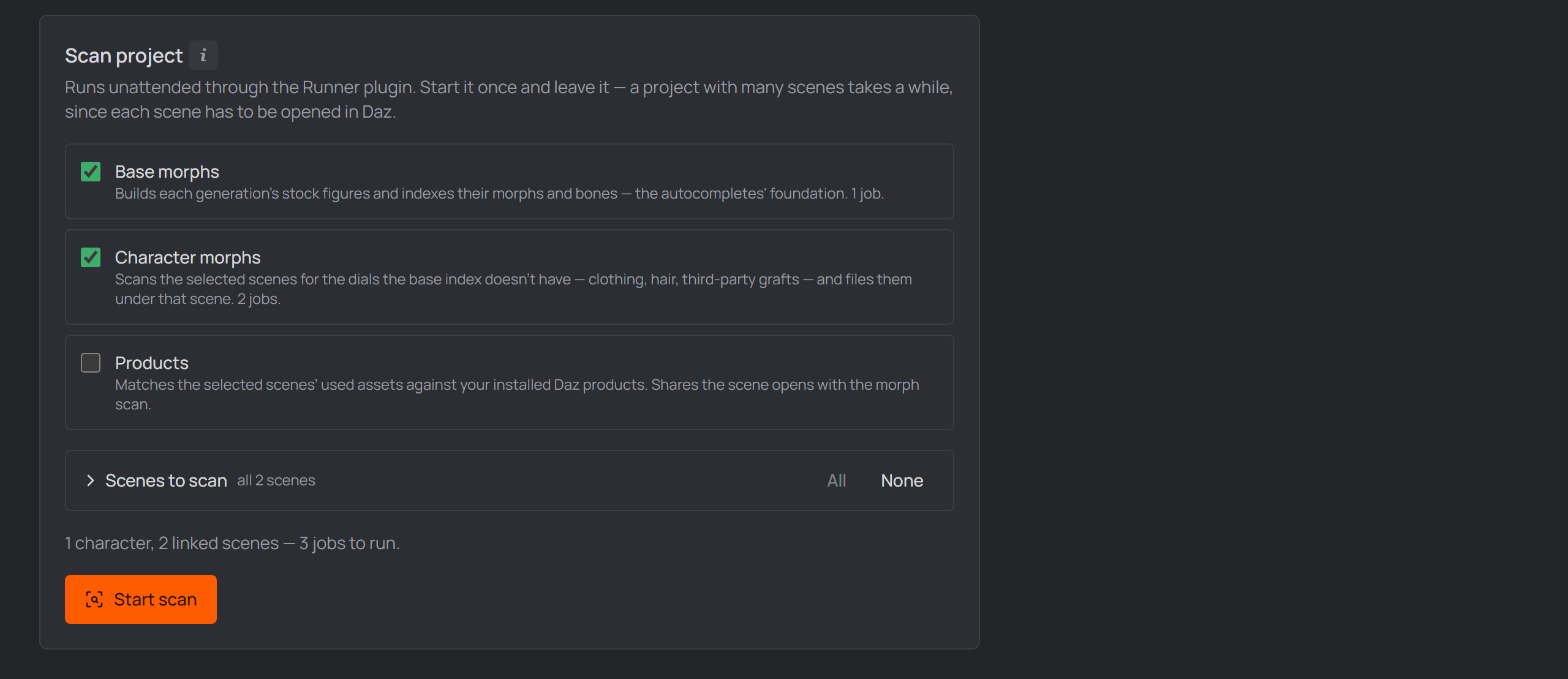
The Scan project panel: tick the passes, press Start scan, leave it.
- Base morphs — builds each generation's stock figures and indexes their
morphs and bones (exactly what
Build_Genesis_Indexdoes). One job. It runs first, because the scene scans below filter themselves against it. - Character morphs — opens every linked Daz scene of every character and indexes the dials the base index doesn't have: fitted clothing, hair, third-party geografts and add-ons. Each find is filed under the scene it was found in. One job per scene. A scene scan needs the base index of its generation — it works out what a scene adds by subtracting it — so with no base index the scan stops and says so rather than filing the entire stock figure as this scene's contribution. Build Base morphs first and nothing is lost: the next ROM or export run scans the scene by itself.
- Products — runs the Daz Products scan for the same scenes. Available once a DAZ Install Manager manifests folder is set (Settings) — that folder is what the scan matches against. It shares the scene opens with the morph scan, so ticking both costs no extra time.
Scenes to scan — the two scene passes default to every linked scene, but
each one is a full Daz open, so a big project is a long run. Expand the list to
tick exactly what you want (per scene, or a whole character at once); All /
None are there for the extremes. The job count updates as you pick, so you
can see what you're committing to before you press Start. The picker governs
both scene passes together — a scene is opened once and runs whichever scans it
is due for. Scenes whose .duf is missing on disk are listed struck through and
never enqueued.
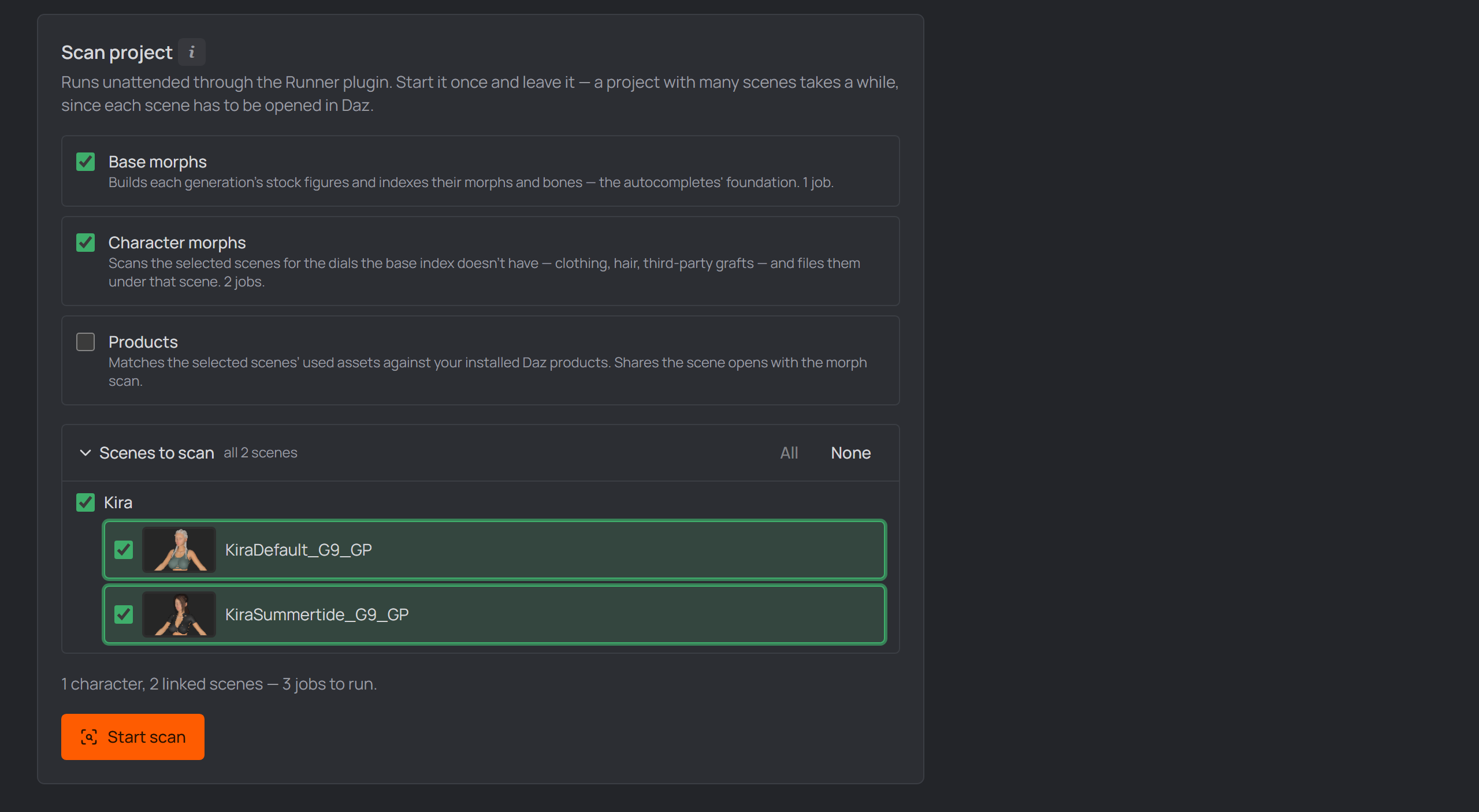
The expanded scene picker: a tri-state box per character, a card per scene.
Because each scene has to be opened in Daz, a project with many scenes takes a while — that's the point of it being one unattended run. A Daz the studio has to start for the scan starts minimized and stays out of your way; one you already had open is left where it is. While the batch is still waiting for Daz to pick it up you can Abort it; once Daz has claimed it, the run belongs to Daz.
Reached from the Home window (no project open), the two scene passes are disabled and Base morphs runs on its own — that pass belongs to no project.
Note
Why scene morphs are scoped to their scene. Two outfits in two different scenes both have an Expand All dial. Before, the autocomplete offered both and you had to know which was which. Now a scene-scanned morph is only suggested while that scene is the one selected in the character editor, marked with a small this scene badge. Morphs the base figure carries are always offered. Re-scanning a scene replaces what it contributed, so clothing you removed stops being suggested. You rarely have to re-run this by hand: every ROM/export run re-scans the scene it just built, so a scene's suggestions follow what it actually wears.
Tab 2 — Daz Studio & Houdini#
Install your own Daz / Houdini content (not DTH release data). Each section remembers its folders in Settings and installs from them on demand. Dry run everywhere previews without writing.
Daz assets#
Point it at your asset source folders (e.g. per-Genesis download folders;
.zips are extracted). Each asset's content (data / People / Runtime /
Documentation) installs into "My DAZ 3D Library", skipping what's already
there. When two products ship the same file, the winner is picked
automatically — newer Genesis wins (by folder name), then the bigger
file. Scan lists what's found; Install copies only what changed.
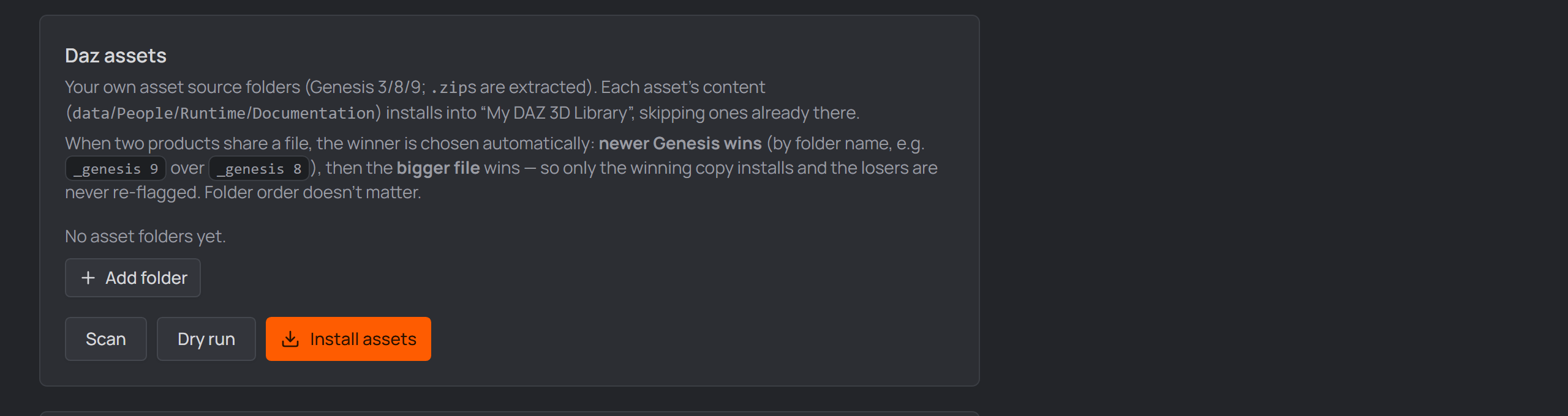
The Daz assets install section.
Deduplicate#
Finds duplicate assets (a folder and its identical .zip, or the same
product at two versions) and conflicting shared files (the same file
shipped by two products at different sizes). Scan previews; nothing changes
until you Apply. Apply only quarantines the redundant copies — it
moves them to a Quarantine folder you set, so it's reversible (pick one
outside your asset sources, and empty it yourself in Explorer once you're
sure). Shared-file conflicts are never rewritten — that would edit an
author's download — you Accept them instead, which tells the scan they're
legitimately shared. Store "wrapper" downloads (a zip inside a zip) are looked
inside automatically.
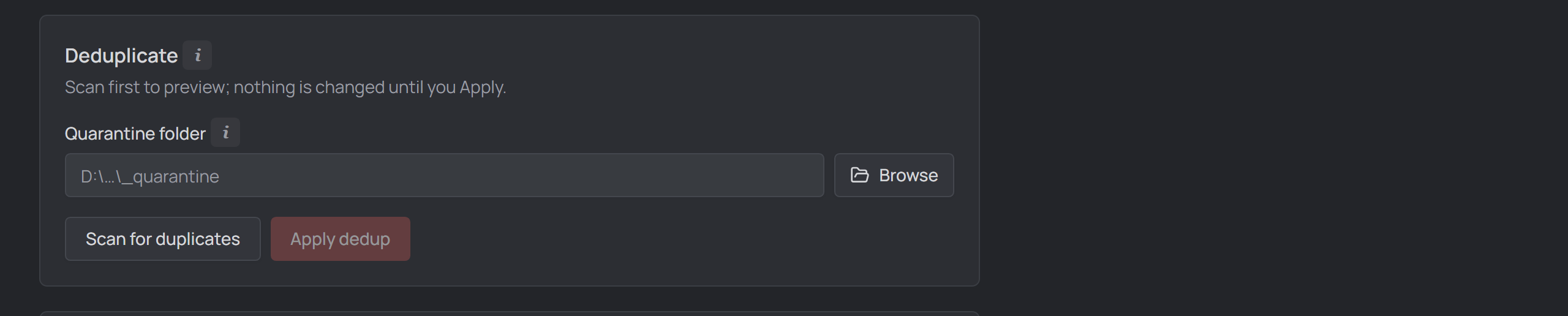
The Deduplicate section for redundant and conflicting assets.
Custom morphs · Daz presets#
Two merge-only installs (add new files, never overwrite your edits): custom
morphs made with Daz's Transfer Shape Utility (source → your library's
data/Daz 3D), and your Daz presets.
Houdini presets#
Merges your Houdini my_presets into your Houdini documents folder and wires it
into that version's houdini.env (SHARED_PRESETS + HOUDINI_PATH).
Danger zone#
Caution
After you uninstall Daz Studio / DIM via Windows "Add or remove programs", leftover folders remain. This permanently deletes each listed folder recursively. Use Prefill folder paths to add the standard Daz locations, edit the list, and always Dry run first. As a safety rail the studio refuses to delete a drive/profile root or any folder that isn't Daz-owned.
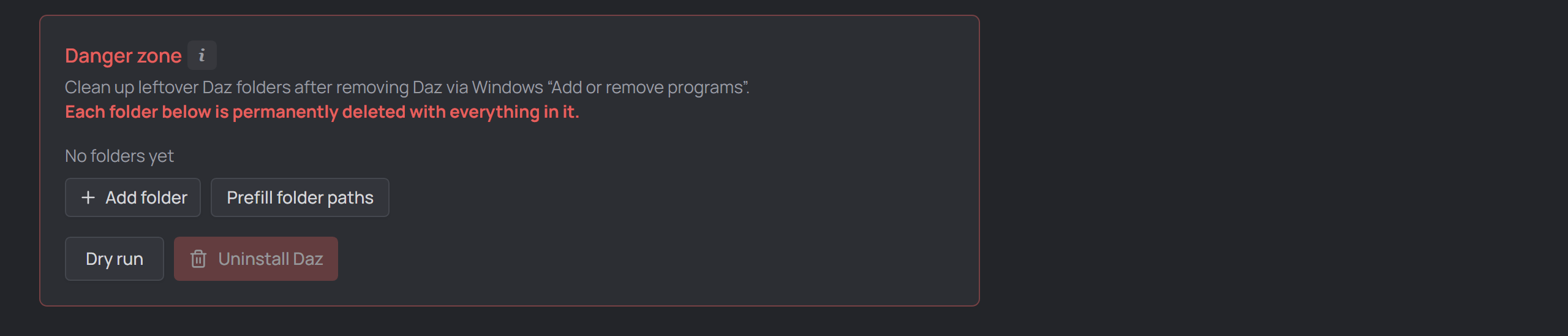
The Danger zone for removing leftover Daz folders.
Tab 3 — Refresh assets#
Re-generates the Daz scripts and PoseAsset CSVs so every generated file matches
the current studio/runtime version, migrating definitions saved by an older
studio first (your ROM content is preserved). Run it after updating the app
or switching DTH release. It covers every known (recent) project, no
matter which window you run it from; problems per character are listed inline,
and the button pulses orange when a refresh is due. It also cleans up after
older versions — e.g. the dth-exports shortcut links (NTFS junctions) they
kept beside Houdini projects are removed, reported as removed N leftover
dth-exports junction(s); real folders are never touched. Ctrl+click Refresh also
rebuilds every character's stored avatar from its pristine source — needed
once after an update that changes the avatar pipeline.
The detection table compares three versions, Local (your files) vs App (what this studio generates):
- DTH Version governs the Houdini PoseAsset CSV — the only artifact tied to the DTH release. It's pinned to the release's CSV era, so a non-breaking release update (e.g. 2.4.3 → 2.4.4) stays current; only a release that changes the CSV format marks it out of date, and the CSV is then regenerated.
- Character Schema Version governs the character definition (its
.json). A newer version means the stored shape changed: the definition is migrated and re-saved — and, since a migration can change generated output, its Daz scripts and PoseAsset CSV are regenerated too. - Script Runtime Version governs the generated Daz scripts (the ROM /
Export
.dsa) and the shared DTH runtime files. A newer version means the runtime's call API changed, so the runtime files are reinstalled and every character's scripts regenerated.
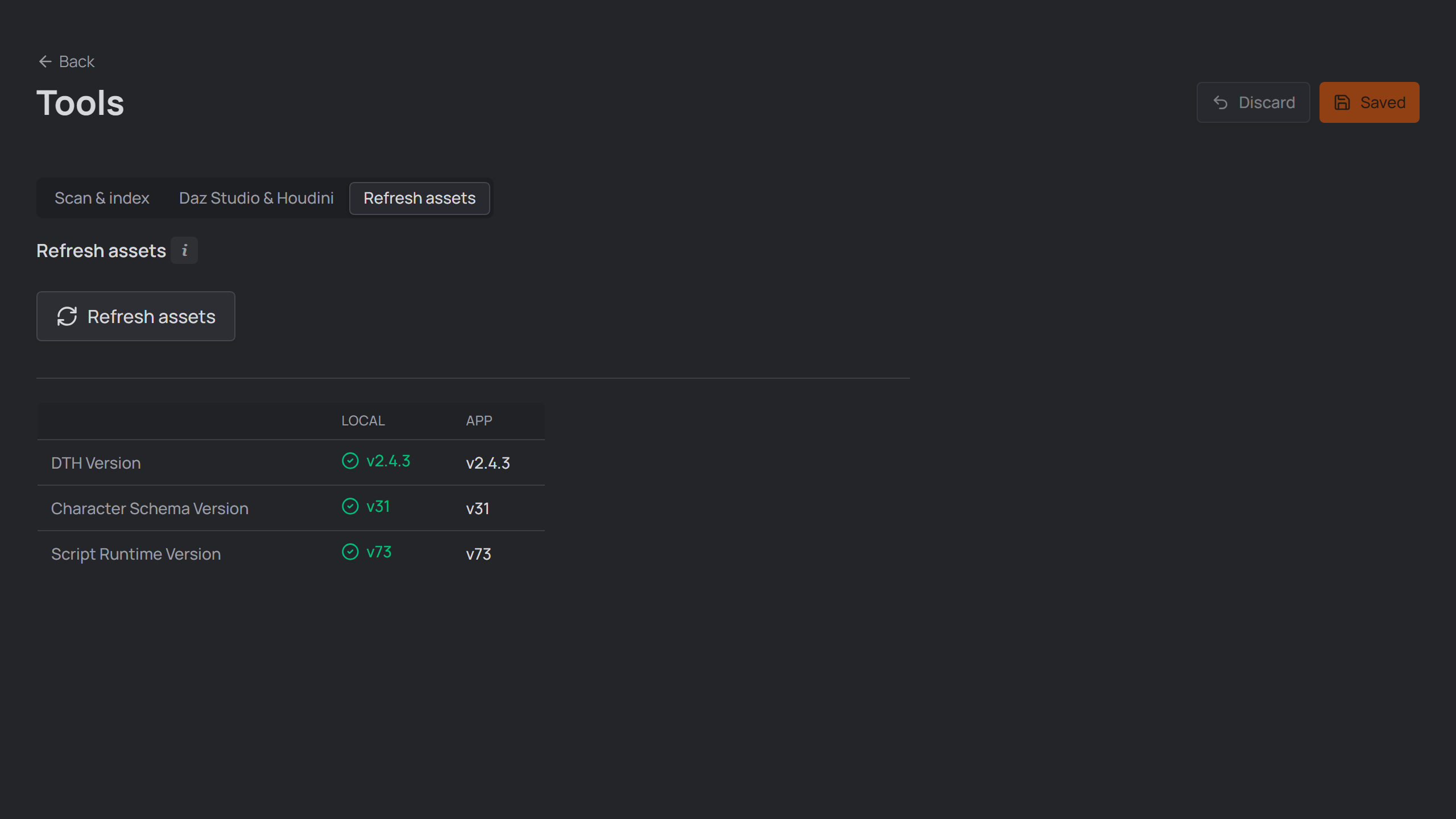
The Refresh assets tab.